


How to Block P.O. Box Addresses at Shopify Checkout
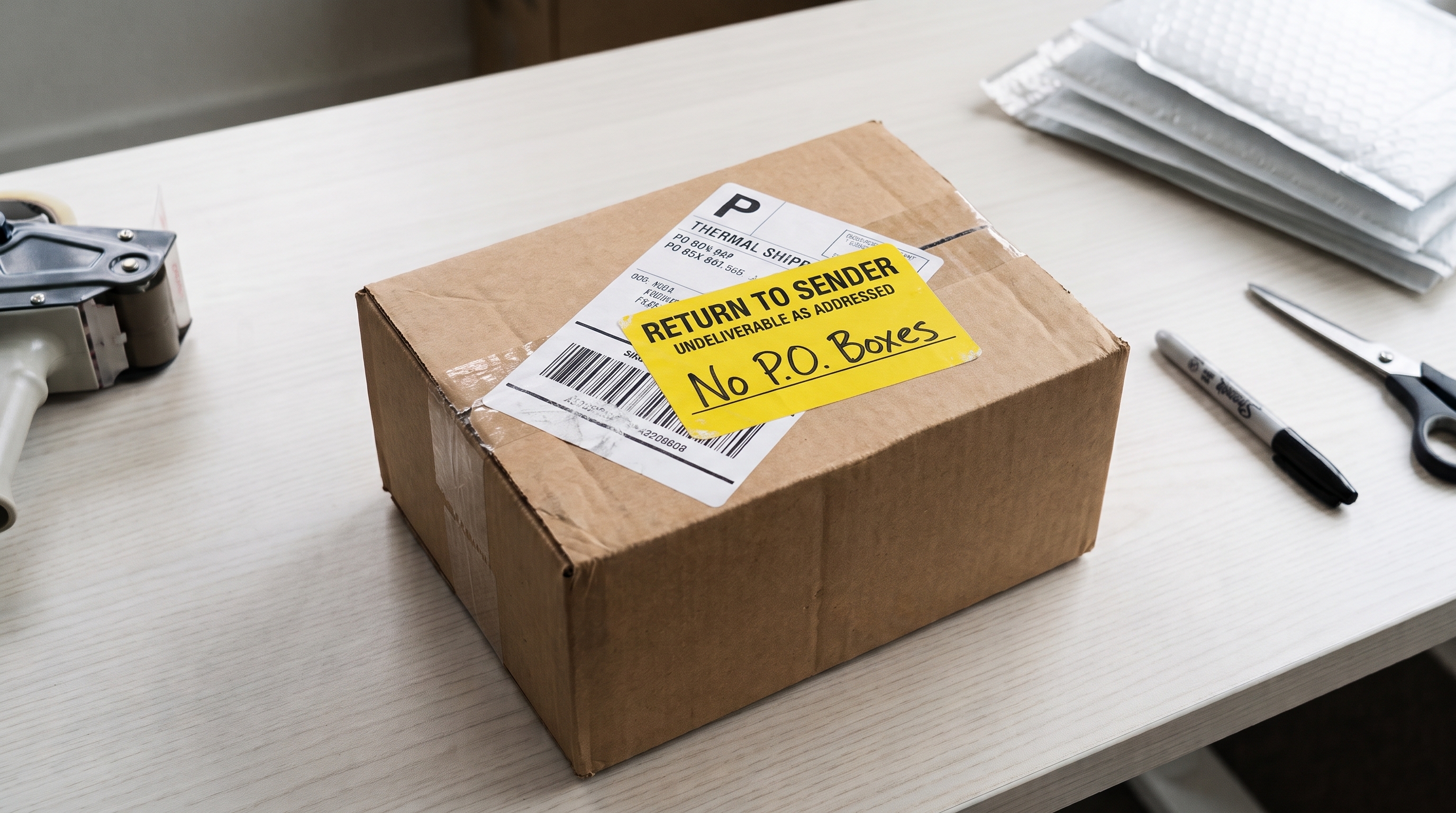
The order came in just like any other. Payment went through, the customer picked a shipping method, and everything looked ready to go.
Then your fulfillment team sees the address: it's a P.O. Box. And the shipping method the customer selected can't deliver there.
Now someone has to fix it. That means contacting the customer for a new address, switching the shipping method, or holding up the order while your team figures out another option.
For Shopify merchants with multiple carriers, oversized products, freight, or more complex shipping rules, simply blocking every P.O. Box isn't always the answer. Some orders can still ship. They just need the right shipping method.
Shopify Plus merchants can block P.O. Box addresses at checkout using Checkout Blocks. But with ShipperHQ, you don't need Shopify Plus to restrict incompatible shipping methods.
Merchants on eligible Shopify Grow, Advanced, and Plus plans can hide methods that can't deliver to P.O. Boxes while keeping valid shipping options available.
Here's how both approaches work.
Why Block P.O. Boxes at Checkout?
Some shipping methods need a physical street address. Others, like USPS services, can deliver to a P.O. Box.
Problems happen when checkout lets a customer choose a shipping method that won't work for their address.
The order goes through, and then you have a customer service issue. That can mean contacting the customer, changing the shipping method, rerouting the package, or dealing with the shipment being returned-to-sender.
P.O. Boxes can be especially tricky for orders involving freight, oversized products, carrier restrictions, or services that require a street address.
Catching these issues at checkout (before the customer pays) helps prevent failed deliveries, extra shipping costs, manual order changes, and customer service tickets.
But blocking the address completely isn't always the best answer.
If one of your shipping methods can deliver to that P.O. Box, you can keep it available and hide the methods that don't.
How to Block P.O. Boxes in Shopify
Shopify Plus merchants can block P.O. Box addresses using Address format validation in the Checkout Blocks app.
This prevents customers from completing checkout with an address that doesn't meet your rules. They'll need to correct the shipping address before continuing.
To set it up:
- Go to Apps > Checkout Blocks in your Shopify admin.
- Select Functions > Create function.
- Under Validation, choose Address format validation.
- Enter a title for your validation rule.
- Turn on Block-specific address types and select PO Box.
- Select the address fields you want to validate.
- Add a custom error message, such as "Please enter a street address. We cannot ship to P.O. Boxes."
- Click Save, then change the function's status from Inactive to Active and save again.
Shopify also supports address validation rules for military and diplomatic addresses, parcel lockers, USPS GoPost addresses, and specific ZIP or postal codes.
If your store doesn't ship to P.O. Boxes at all, this approach may be enough.
But if you offer shipping methods that support P.O. Box delivery, blocking the entire address can prevent orders you could otherwise fulfill.
Where Shopify's P.O. Box Blocking Gets Limited
Blocking a P.O. Box is straightforward when your rule is the same for every order: the customer must enter a different address.
Shipping gets more complicated when the restriction depends on the carrier, shipping method, or products in the cart.
For example, a customer might enter a P.O. Box and have two shipping options. USPS can deliver the package, but the selected UPS service cannot.
Blocking the entire address would stop the customer from ordering, even though a valid shipping option exists.
A better approach is to hide the shipping methods that don't work and leave the eligible ones available.
That's where ShipperHQ's Shipping Rules come in.
How to Restrict P.O. Box Shipping Methods With ShipperHQ
ShipperHQ’s Shipping Rules let you control which shipping methods appear at Shopify checkout based on the customer's destination and the conditions of the order.
It includes a dedicated US P.O. Box Shipping Zone that identifies common P.O. Box address formats. You can use that zone with Shipping Rules to hide carriers or methods that cannot deliver to those addresses.
For example, if a customer enters a P.O. Box, you can hide incompatible UPS and FedEx services while keeping eligible USPS options available.
Instead of blocking the order completely, customers see the shipping methods that work for their address.
Set Up a P.O. Box Shipping Rule
To restrict shipping methods for US P.O. Box addresses in ShipperHQ:
- Open Shipping Rules in your ShipperHQ dashboard.
- Click New and select Hide Methods.
- Choose the carriers or shipping methods you want to restrict.
- Set the condition to Shipping Zones.
- Under Shipping Zones Include, select US PO Box.
- Give the rule a title and click Finish to save it.
- Use Test Your Rates to confirm the correct methods appear for P.O. Box addresses.
You can also configure USPS to return rates specifically for P.O. Box destinations.
This lets you prevent incompatible shipping options from appearing without removing services that can successfully deliver the order.
For step-by-step instructions, see How to Hide Shipping Quotes for P.O. Boxes in ShipperHQ.
Apply Different Shipping Rules Based on Products
The customer's address is only one part of the shipping calculation. What they're buying can also determine which methods are available.
For example, a small product may qualify for USPS delivery to a P.O. Box, while an oversized item or freight shipment requires a physical address.
With ShipperHQ's Shipping Groups, you can organize products with similar shipping requirements and use those groups in your Shipping Rules.
That lets you apply different restrictions to oversized products, freight items, and products that require specific carrier services.
For a cart containing products with different shipping needs, ShipperHQ uses your configured rules to determine which methods should be available.
You're not limited to applying the same restrictions to every product or order.
Stop P.O. Box Shipping Problems Before Orders Are Placed
Blocking P.O. Boxes can prevent orders your carriers can’t serve, but a blanket restriction can also cost you valid orders when some shipping methods can deliver there.
ShipperHQ gives you control over which shipping methods appear based on the destination, products, carriers, and shipping rules you’ve configured.
Blocking P.O. Boxes at checkout with Shopify’s Checkout Blocks requires Shopify Plus.
ShipperHQ works on more Shopify plans, including Grow, Advanced, and Plus, when your store has Carrier Calculated Shipping enabled.
That means fewer incompatible shipping selections, fewer manual fixes for your fulfillment team, and more valid shipping options for your customers.
Explore more ShipperHQ features, book a demo, or start a free trial to see how Shipping Rules work for your store.
Frequently Asked Questions
Can Shopify block P.O. Box addresses at checkout?
Yes. Shopify Plus merchants can use Address format validation in Checkout Blocks to prevent customers from completing checkout with a P.O. Box address. Customers must enter an acceptable shipping address before continuing.
Do I need Shopify Plus to block P.O. Box shipping?
Shopify's native P.O. Box address validation through Checkout Blocks requires Shopify Plus. However, you can use ShipperHQ on eligible Shopify Grow, Advanced, and Plus plans to restrict shipping methods for P.O. Box addresses. ShipperHQ requires Carrier Calculated Shipping (CCS), which is included with Advanced and Plus and available on eligible Grow plans.
Can I block UPS and FedEx shipping to P.O. Boxes on Shopify?
Yes. With ShipperHQ, you can create Shipping Rules that hide incompatible UPS and FedEx shipping methods for P.O. Box destinations while keeping eligible services, such as USPS, available.
Can USPS deliver to a P.O. Box?
Yes. USPS offers delivery to P.O. Box addresses. With ShipperHQ, you can configure USPS rates for P.O. Box destinations while restricting shipping methods that require a physical street address.
Can I restrict shipping methods based on the customer's address?
Yes. ShipperHQ Shipping Rules can restrict shipping methods based on shipping zones, states, ZIP codes, P.O. Box destinations, and other configured conditions. With Address Validation, you can also apply rules based on residential or commercial address type.
What's the difference between blocking a P.O. Box and restricting shipping methods?
Blocking a P.O. Box prevents the customer from using that address at checkout. Restricting shipping methods removes shipping options that can't deliver to the address while leaving valid methods available. This gives customers more flexibility without creating incompatible shipping selections.

Share this article
Related Articles

How Does a Shipping Calculator Actually Work?
Losing $2 on a shipment is annoying. Losing $24,000 a year is a real problem.

Accurate Estimated Delivery Dates on Shopify: A Guide for Complex Orders
Customers tend to read a delivery date as a promise.If your checkout says “Arrives Friday,” your customers expect it to ...

How to Personalize the Shipping Experience for Ecommerce Customers
Maya orders coffee beans every few weeks from a small roaster in Portland. The first time she checked out, she saw the ...